Compiling from sources
This version, currently the only one available, is prepared for Windows 10 32-bit. OpenGL libraries (32-bit versions) are downloaded and added by default to linker, so you do not have to download them again. Only dependency is actually this repository.
Dependencies
The most needed application for MAREngine on Windows is Visual Studio 2019. Through it I am able to compile sources correctly. CMake is also added for future integration with Linux Operating Systems.
Some requirements are fullfiled from public repositories, but some of them are just added.
Repositories, that need to be cloned (if clone MAREngine with –recurse-submodules you will have them automatically):
Repositories, that are added already with the MAREngine:
glew
glfw3
entt (because it is single-include, we don’t need the whole repository)
python3.8.5
stb_image
Installation
Please, do not download repository as a .zip file, because you will not fullfil dependencies such as submodules above!
Windows
#1 The easiest way
Clone repository
git clone --recurse-submodules https://github.com/mregussek/MAREngine.git
Open MAREngine.sln (located in main directory).

Make sure, that selected target is x86 (no x64!)

Firstly you will have to build MAREngine in order to create static library.
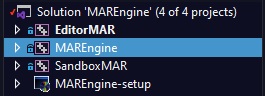

If library is compiled succesfully you should find ${SolutionDir}/bin/Release/Engine/MAREngine.lib file. Now you can compile either EditorMAR or SandboxMAR. Choose, which one you want to use with Build option. Also make sure, that selected project should be set as startup (marked with bold font).

Have fun! ;)
#2 CMake on Windows
Clone repository (with submodules, cause I use ImGui, spdlog, serialport and MARMaths from its own sources!)
`
git clone --recurse-submodules https://github.com/mregussek/MAREngine.git
`
Open CMake (CMake-GUI in my case)
Select proper paths!
Where is the source code: Here please select path, where you cloned repository!
Where to build binaries: Please select path to repository with /build directory!
Examples:
Where is the source code: C:/Path/to/MAREngine
Where to build binaries: C:/Path/to/MAREngine/build
Press Generate button!
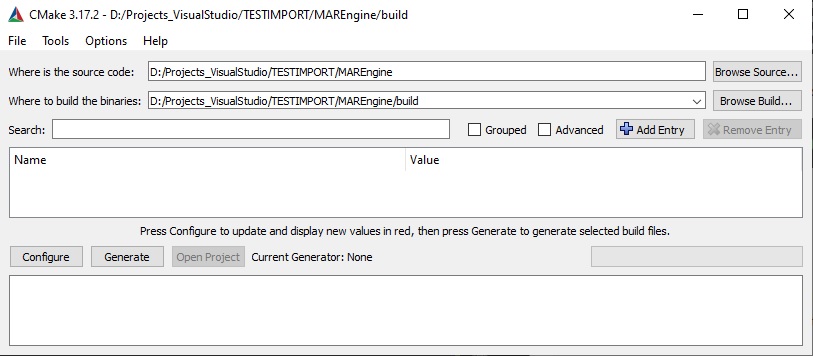
New window will be opened. Here make sure, that you choose generator for Win32!)
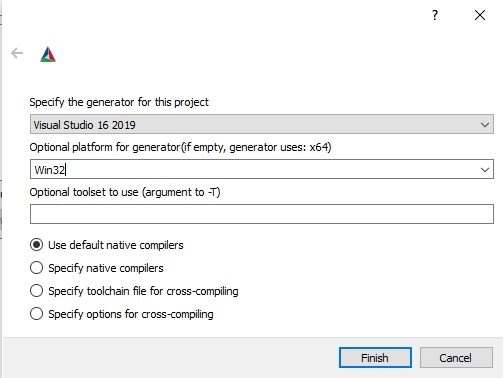
Press Finish. CMake will generate all needed files.
Select Open Project button. You will be able to compile project.
Firstly you have to build MAREngine in order to create static library.
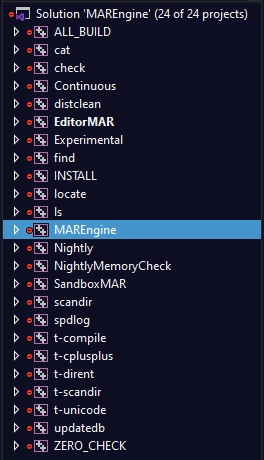
Secondly you have to build EditorMAR or SandboxMAR. Make sure, that selected project should be set as startup (marked with bold font).
Copy DefaultProject, resources directories from EditorMAR to C:/Path/to/MAREngine/build. Also copy desktop.ini, imgui.ini and python38 to C:/Path/to/MAREngine/build.